Direct the opening. Shape the final moment.
Use Veo 3.1 for a short, deliberate brand shot. Prepare a strong opening image, describe the action and, on a compatible frame route, add the composition you want to finish on.
Open Veo 3.1 in the studio Prepare your draft first. Review the credit quote before creating.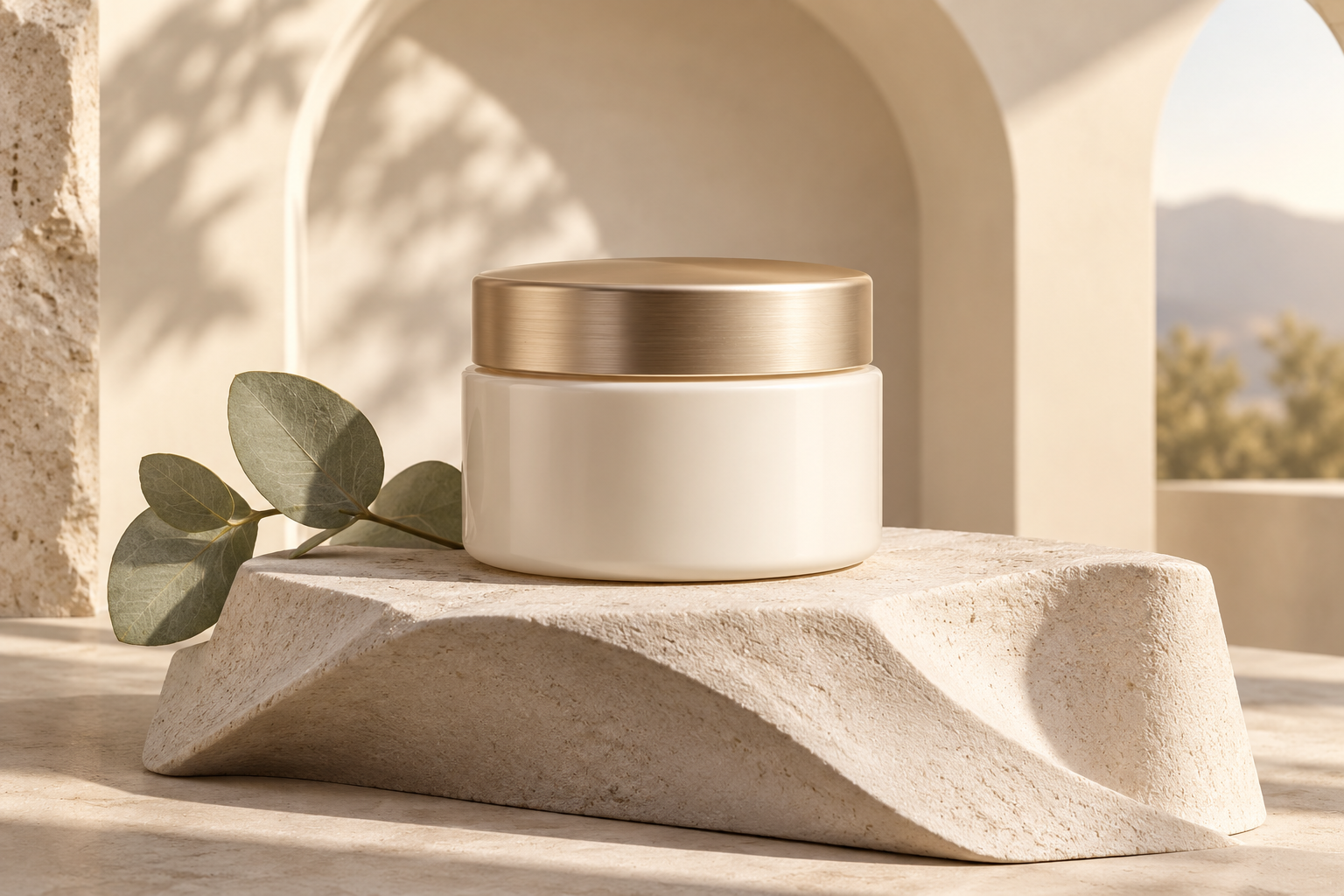 YOUR PRODUCT
A direction.
Your next shot.
What can I upload
with Veo 3.1?
Pick the workflow you want. Each route has its own supported inputs; the studio shows the controls for your selected mode.
Start with a photo
A compatible image-to-video route animates your starting image. Describe the movement, lighting and action you want to happen.
Provider input documentation ↗Connect two frames
The first/last-frame route accepts the two still compositions and a description of the transition between them.
Provider input documentation ↗Available routes depend on the connected provider and your workspace. Uploading a file or opening a model page never starts a generation.
Build a useful creative test.
These are ways to plan a marketing shot, not promises of ad approval, higher sales or identical results.
A product in motion
Start from a clean product scene. Keep the camera move simple and leave text overlays for your final edit.
An opening and a reveal
Prepare a detail shot and a wider final composition, then ask for a transition that makes sense between them.
A focused ad hook
Build one short moment for your next creative test. Review the message, output and audio before publishing.
Bring the idea.
Keep the controls simple.
- Choose your destination
Select TikTok, Instagram, YouTube or another destination. The studio prepares the matching composition where your model supports it.
- Add your media and direction
Use a permitted photo, frame pair or source clip for the selected workflow. Tell the model what should move and what must stay consistent.
- Review, create and download
Check the exact model, inputs and server credit quote. Create only when ready, then review your completed asset before publishing.
Know what this workflow can do.
- The Veo routes integrated here use still-frame inputs. An uploaded source video is not accepted by these routes.
- Single-shot duration depends on the selected route and settings. A longer project uses a separately reviewed multi-clip plan; continuity between clips can vary.
- fal lists retirement of its Veo 3.1 endpoints for 17 November 2026. Availability is checked in the studio; an unavailable route is not silently replaced.
- Your final quote depends on the actual model, duration, resolution and inputs. Review the full cost before explicit generation; longer projects can require multiple charged clips.
- Use media you have permission to upload. Provider content rules and screening still apply, and completed media needs your review.
Your questions, answered.
Can I use a start and an end image with Veo 3.1?
Yes, on a compatible first/last-frame route. Some routes require both images, so the studio shows the required upload controls for your selected mode.
Can I edit an existing video with this Veo mode?
The Veo routes currently integrated in AI Campaign Studio do not accept a source video. Use a compatible video-reference or editing workflow when you want to work from an existing clip.
How many credits does a video cost?
The studio calculates a server quote from the selected model, duration, resolution and inputs. There is no single fixed credit price for every video. Check monthly plans, then review the exact quote before creating.
Capability sources
Provider documentation reviewed . Provider features may exceed the modes integrated in this studio; the selected studio route remains authoritative.