
Turn a product photo into a focused AI video ad
Choose a useful product photo, write a restrained motion brief and review the resulting clip before building a branded video ad.
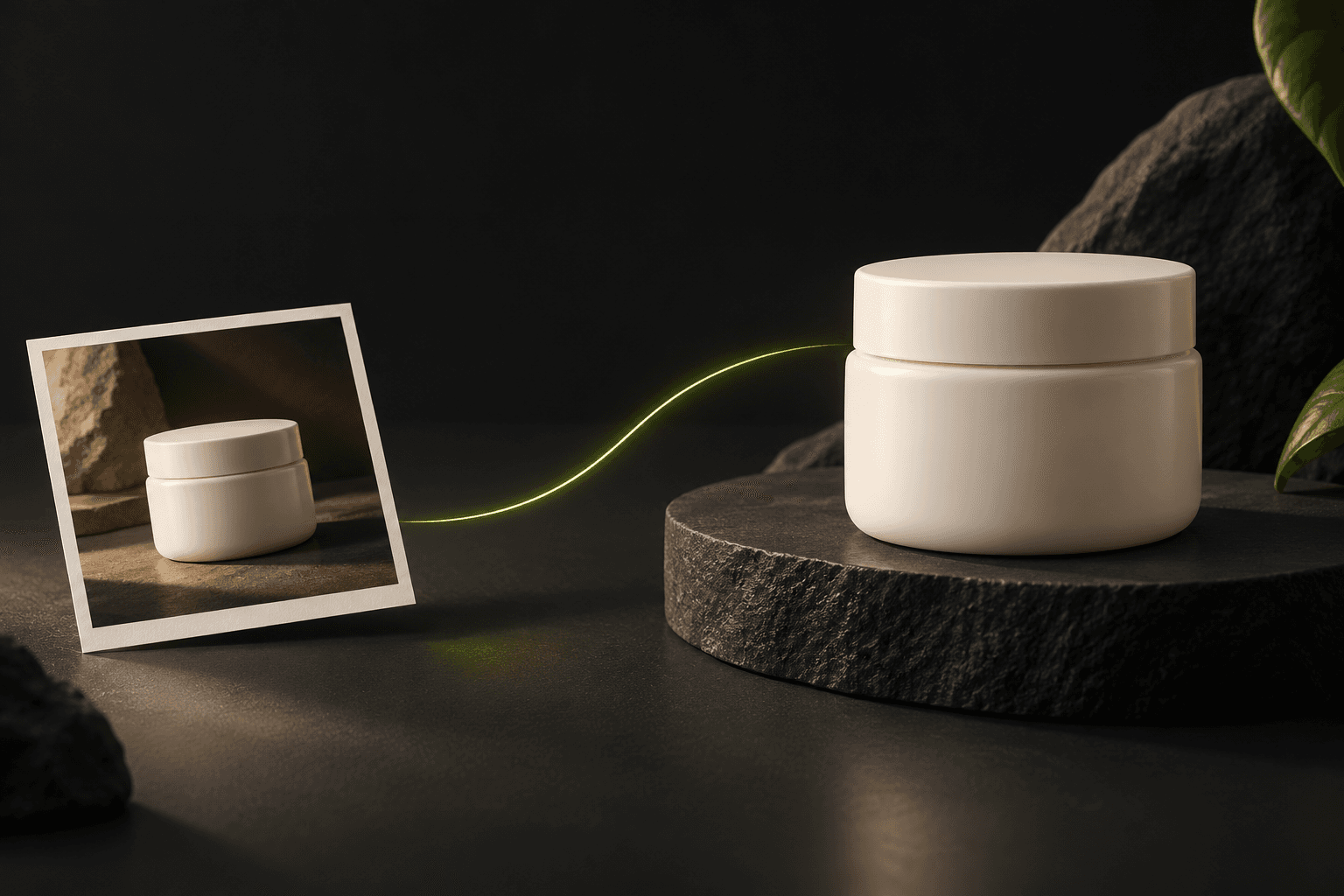
Choose the product detail worth animating
An effective product video starts with a specific message. A skincare jar might need a quiet reveal of its packaging; a portable speaker might need a clear view of its controls. Decide what the viewer should notice before adding movement. A moving background is useful only when it helps that message remain easy to understand.
For an illustrative skincare ad, the brief could describe a slow camera push towards the closed jar, soft daylight across the lid and a clean area for a headline. Keep the actual product colour, shape, label and closure on a separate review checklist. Avoid asking the clip to demonstrate benefits that the source photo cannot establish.
Prepare a convincing opening image
Choose a sharp photo with the complete product visible and enough space around its edges. Remove unrelated objects before planning a complicated scene. Reflections, transparent packaging and small lettering deserve extra attention because they provide easy reference points when comparing the finished clip with the original. Keep an untouched copy of the source for that comparison.
Plan the intended crop now. A vertical placement may need more room above the product than a landscape banner. If you create an opening image first, approve that still before spending on motion. An ending image can define a second composition when the selected model supports it; a general reference image serves a different purpose from a specified opening or ending frame.
Ask for one readable movement
Write the motion brief in a clear order: subject, movement, camera, lighting and the details to preserve. For example, ask for a slow forward camera move while the jar stays closed and stationary. Describe the desired finish, such as a steady product view with space for a call to action. Keep rotations, pours and scene changes for separate experiments.
Select a model that accepts the input you actually have. The documented Kling 3 Standard image-to-video route requires an opening image and offers an optional ending image. Other routes expose different inputs and durations. In the app, check the selected model’s controls and quote rather than assuming every image-capable model can use the same frame pair, format or clip length.
For Seedance 2.5, choose the route that matches the job rather than selecting the model name alone. The fal image-to-video route uses an opening image and can accept an optional ending image; that route follows the opening image’s shape. Prepare a supported crop before submitting, choose a fixed duration offered by the studio and inspect the quote, including generated audio. The reference-to-video route is a separate choice for reference-led work. A file saved in the library is not automatically an eligible provider input: the current app limits source clips to 30 MiB. Check the result’s motion, product details and audio before publication.
Review the take before building the ad
Watch the complete result, then pause near the beginning, middle and end. Compare the silhouette, label, cap, material and shadow with the source. Look for changes during movement, not just a convincing first frame. Check whether the final composition leaves room for readable copy. Keep a useful take, or revise one clear problem before submitting another deliberate generation.
AI Campaign Studio keeps frame and video creation as separate actions with their own quotes. A submitted job can remain queued or processing; that state is not a finished asset. Once a completed take is approved, attach it to a saved campaign scene and review the assembled MP4. Check the final text, audio, crop and offer, then publish through your chosen channel yourself. Gallery samples illustrate the workflow; they do not prove this example was generated.
Sources & further reading
- OpenRouter: video inputs, model capabilities and job states ↗
- fal: Kling 3 Standard image-to-video input schema ↗
- fal: asynchronous request lifecycle ↗
- fal: Seedance 2.5 opening image, optional end frame and output shape ↗
Product documentation can change. Check current provider controls and terms before production.